DeskRT low-latency codec
AnyDesk uses its own video codec, DeskRT, designed to keep remote sessions responsive even when bandwidth is limited.
Use AnyDesk remote desktop software for remote PC access, screen sharing, file transfer and technical support on Windows, macOS, Linux and Android. Explore our Windows setup instructions and platform guides. Read our dedicated setup and safety guides before connecting.
AnyDesk is remote desktop software developed by AnyDesk Software GmbH in Germany. It lets you see and control another computer or mobile device over the internet, as if you were sitting in front of it.
Each device running AnyDesk gets an AnyDesk address. Enter someone's address, they accept your request, and the session starts. Every connection is encrypted, and the person being helped decides exactly what the other side may do.
This website is a dedicated resource. We provide the Windows installer as a direct download, plus clear guides for setup, compatibility and safe use. We're not affiliated with the developer.
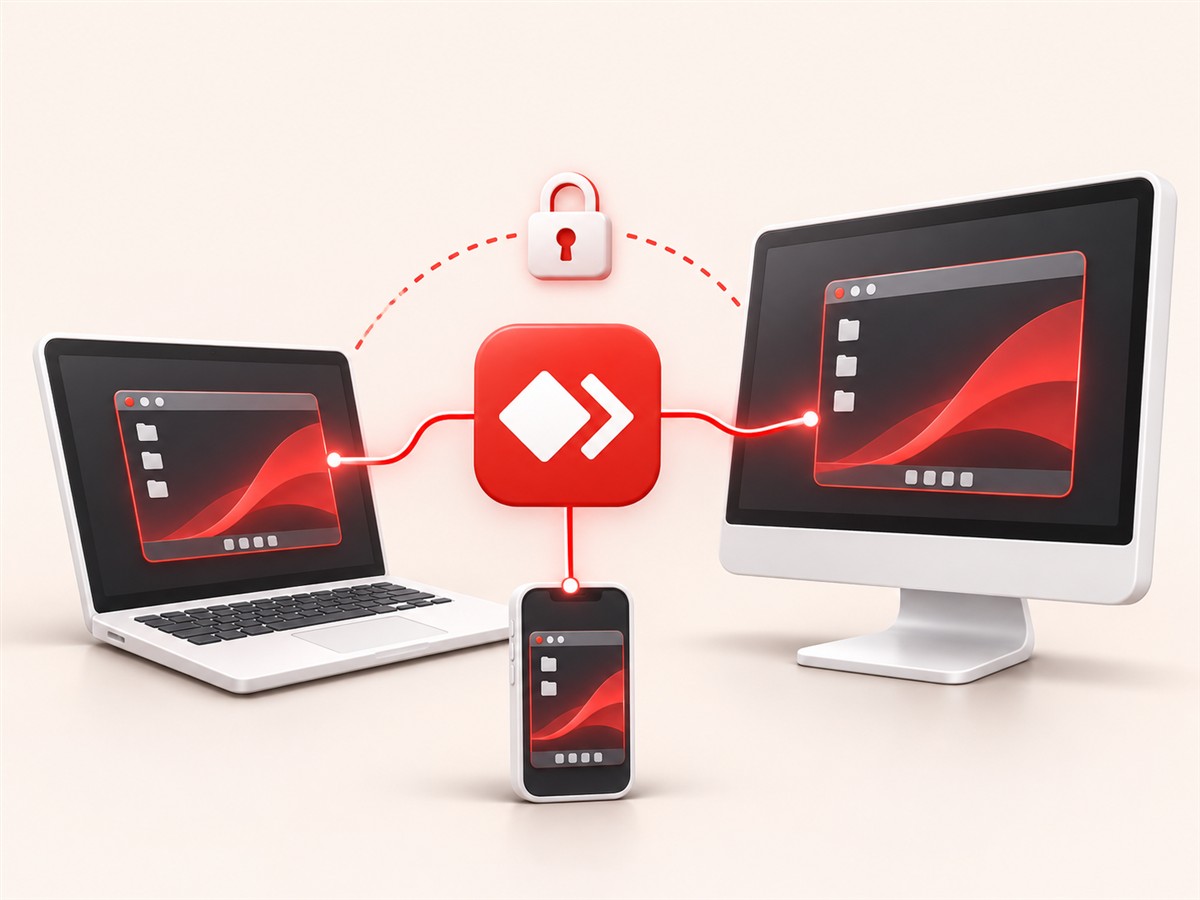
The features people use most, from a quick help session to secure access to your own PC.
AnyDesk uses its own video codec, DeskRT, designed to keep remote sessions responsive even when bandwidth is limited.
Connect between Windows, macOS, Linux, Android and iOS/iPadOS devices, all using the same AnyDesk address system.
Save devices you connect to often, see which are online and give them readable names instead of remembering numbers.
Reach your own computer when nobody is in front of it, protected by a password, optional two-factor authentication and access rules.
Sessions use TLS with 256-bit AES transport encryption and RSA 2048 key exchange, as documented by the developer.
Run AnyDesk.exe without installing anything. It's useful for one-off help sessions or on PCs where you can't install software.
Move documents between connected devices during a session, without email or cloud storage.
Decide what a remote user may do, from view-only to full control, clipboard and file access. Save these choices as permission profiles.
Add a second verification step to unattended access, so a password on its own isn't enough to get in.
No accounts or router settings needed for a basic session. Just the app and an address.
Save the AnyDesk installer for Windows from the download section below.
Open AnyDesk.exe. It runs right away, and you can install it for permanent use.
Each device shows an AnyDesk address. Share yours, or enter the remote device's address.
The remote side checks the request, sets permissions and accepts. The session starts.
Based on the developer's published list of supported operating systems.
Windows XP SP2 and later
Including Windows 7, 8.1, 10 and 11, plus Windows Server 2003 SP2 or later. This site's download is the Windows installer.
macOS 11 Big Sur and later
Remote control of a Mac works only after you grant the required system permissions.
Ubuntu, Debian, RHEL, openSUSE, Mint
Incoming sessions need Xorg. Under Wayland, only outgoing sessions are supported.
Android 5 and later
Also listed: Amazon Fire OS 4 and later. Controlling an Android device needs a control plugin.
Version 16 and later
Can connect to other devices. iPhone and iPad can't be remote-controlled because of Apple's restrictions.
Raspberry Pi OS and Play Store devices
Raspberry Pi 2 or later is recommended. On ChromeOS, viewing is supported but remote control isn't.
From everyday personal help to professional remote work. Check which licence fits your use.
Open files or check something on your home computer while you're travelling or at another location.
Personal useFix settings, install updates or show someone how to do something on their own screen.
Personal useHelp-desk teams connect to users' devices to diagnose and fix problems quickly.
Commercial licenceAccess an office workstation and its applications from a laptop at home.
Commercial licenceShow software step by step or let a learner follow along on their own device.
Licence depends on useManage a home server, media PC or Raspberry Pi that has no monitor or keyboard attached.
Personal or commercialFeatures tell you what AnyDesk can do. These benefits show how it makes remote help and access easier day to day.
Devices find each other through their AnyDesk addresses, so home users usually don't need to configure routers.
The DeskRT codec is designed to keep sessions usable when bandwidth is limited.
Use the same app and address system whether the other side is a PC, Mac, Linux machine or phone.
Every incoming request shows who is connecting and what they may do, and you can end the session at any time.
On Windows, the program runs straight from the downloaded file, so a first session can start within minutes.
Helping family or reaching your own PC costs nothing. Work use is covered by paid licences.
Read our Windows setup guide for instructions on running AnyDesk for a quick session or installing it for permanent use and unattended access.
Windows Setup Guide
Look for AnyDesk.exe in your browser's downloads, then follow these three steps.
The whole setup takes a few minutes. You can use AnyDesk without installing it, but installation is needed for unattended access and tighter Windows integration.
Using Windows 11 or an older Windows 7 PC? Our guides for Windows 11 and Windows 7 cover the differences.
Download NowUse the main Download button on this page to save AnyDesk.exe, the Windows installer, to your PC.
Right-click the file, open Properties and then Digital Signatures, and confirm the signer is AnyDesk Software GmbH.
Double-click the file and confirm any Windows prompt. AnyDesk opens immediately and is ready to connect.
Use the install option inside AnyDesk to add it to the Start menu, start it with Windows and enable unattended access.
If you enable unattended access, set a strong unique password, turn on two-factor authentication and review permissions.
Remote access is powerful, so a few habits keep your device and data protected.
A genuine installer is digitally signed by AnyDesk Software GmbH. Check it under Properties, then Digital Signatures, before running.
Never install AnyDesk or share your address because an unexpected caller or pop-up tells you to.
Before you accept a session, switch off anything the other person doesn't need, such as file transfer or input control.
Use a strong, unique password with two-factor authentication, and limit access to known addresses.
Run a current version of AnyDesk and keep your operating system up to date with security fixes.
Regular backups protect your files whatever happens to the device, during a remote session or not.
A balanced look at where AnyDesk shines and where it has limits.
Quick answers to the issues people run into most. Our full troubleshooting guide has more detail.
Make sure the download finished, check the digital signature, then allow it in SmartScreen or restore it from antivirus quarantine.
Check both devices are online, re-check the address and make sure a firewall or proxy isn't blocking AnyDesk.
Wake the remote device. On a Mac, grant Screen Recording permission. Updating the graphics driver can also help.
Ask the remote side to allow input control. Install AnyDesk to interact with Windows administrator prompts. On a Mac, allow Accessibility.
Favour speed over quality in display settings, lower the resolution and close bandwidth-heavy apps.
The free version is for personal use only. Get a licence for work, or request a review if your use is genuinely personal.
Answers about downloading, installing and safely using AnyDesk.
AnyDesk Download is a dedicated website that provides the AnyDesk installer for Windows, along with setup guides, compatibility notes and safety tips. We're not affiliated with AnyDesk Software GmbH, the company that develops AnyDesk.