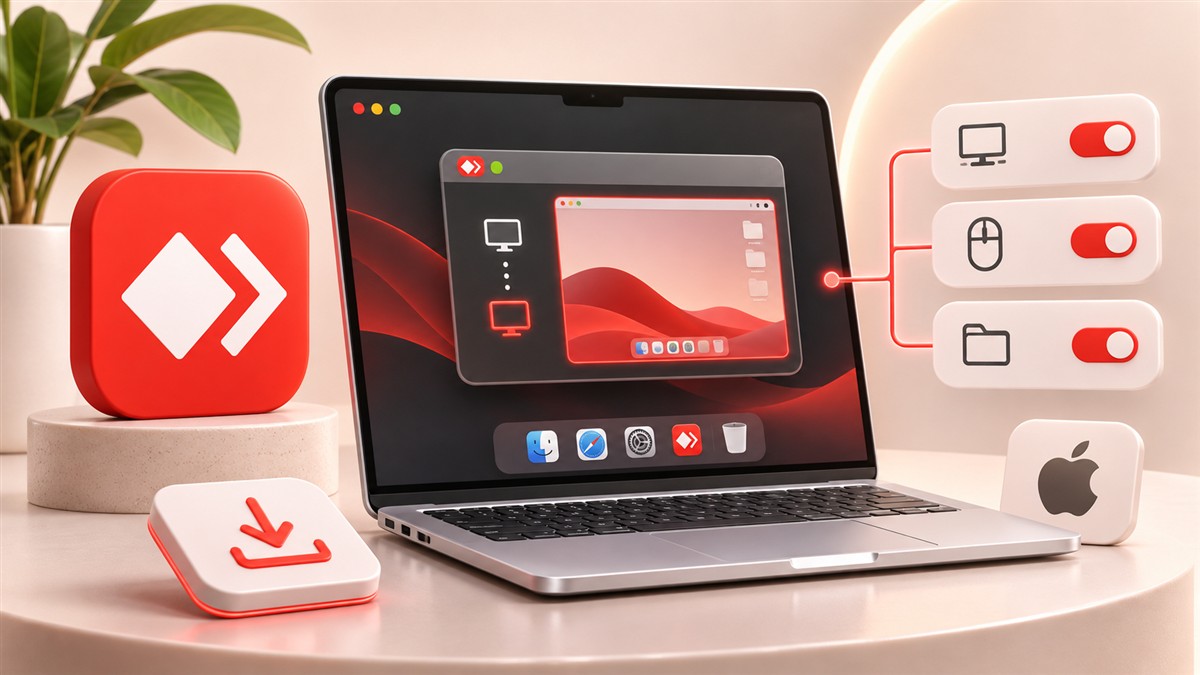
AnyDesk isn't only for Windows. Its developer also publishes a macOS version, so you can reach a Mac from a PC or control a PC from a Mac. Setup on a Mac has one extra stage: macOS asks you to approve specific permissions before anyone can see or control your screen. This guide covers AnyDesk download Mac basics and those permissions.
Please note: the download on this website is the Windows installer (AnyDesk.exe). Macs use a separate macOS package, a .dmg disk image published by AnyDesk's developer. The Windows file won't run on macOS.
Which macOS versions are supported?
At the time of writing, the developer's supported-systems page lists macOS 11 (Big Sur) and later. Requirements change as Apple releases new versions, so check the current list if your Mac runs an older system.
Installing AnyDesk on a Mac
- Open the AnyDesk
.dmgdisk image you downloaded. - Drag AnyDesk into your Applications folder when prompted, or follow the installer.
- Open AnyDesk from Applications. macOS may ask you to confirm opening an app downloaded from the internet.
Granting macOS permissions
The developer's documentation notes that a Mac can only be controlled remotely after you grant the correct system permissions. Open System Settings (called System Preferences on older macOS) and go to Privacy & Security:
- Screen Recording: lets the other side see your screen. Without it, they may only see a blank or frozen image.
- Accessibility: lets the other side use your mouse and keyboard.
Turn on AnyDesk in each list. macOS may ask you to quit and reopen AnyDesk before the change takes effect.
Connecting from or to your Mac
Like other platforms, the Mac app shows your AnyDesk address. Give it to someone you trust so they can connect, or type another device's address to connect to it. The incoming request window on a Mac lets you choose permissions before you accept.
Tips for Mac users
- If you reconnect and the screen is black, check that Screen Recording permission is still turned on, especially after a macOS update.
- Keyboard layouts can differ between a Mac and a PC. Check the keyboard setting in the session toolbar if characters don't match.
- For unattended access, use a strong password and two-factor authentication.
Other devices
AnyDesk also has apps for Linux, Android and iOS/iPadOS. On iPhone and iPad, Apple's restrictions mean those devices can't be remote-controlled. Read how to use the AnyDesk app for an overview across devices.
Separate the Mac download from the Windows installer
Start by checking which computer will run the software. The operating system on that computer determines the package you need, even if the other person uses a different platform. A Mac connecting to a Windows PC still needs the Mac application locally. The Windows PC needs its own Windows copy. Do not rename an executable file or change its extension in an attempt to make it compatible; changing the name does not convert the software inside it.
Keep the downloaded disk image until you have confirmed that the application has been copied to the intended location and opens normally. Then launch AnyDesk from Applications so you know which copy is being used. Running duplicate copies from different locations can make permission troubleshooting confusing. If a Mac is managed by an employer or school, application installation and privacy permissions may be restricted. Ask the administrator to approve the arrangement rather than trying to remove management controls.
Approve permissions at the Mac itself
Plan the first setup while someone can use the Mac locally. System privacy controls exist to prevent applications from silently gaining screen and input access, so some approvals need direct interaction. Explain why each requested permission is needed before enabling it. Seeing the desktop and controlling the keyboard are different capabilities. If your goal is only to demonstrate an issue, view-only access may be enough and can avoid granting wider control than the support task needs.
The names and location of privacy settings can change between macOS releases. Look for the controls governing screen capture and accessibility or device input, then identify the actual AnyDesk application entry. Follow any request to quit and reopen the application. Test again with a harmless window before assuming that the change worked. If a setting is locked by device management, record the message and ask the person responsible for the Mac to review it.
Handle keyboard and display differences
When you connect between a Mac and a Windows PC, modifier keys and shortcuts may behave differently. Try typing a short line in a plain text editor before entering a long command or editing a document. Confirm how the session handles the Command, Control and Option keys, especially if the two computers use different language layouts. A keyboard mismatch can look like missing input even when the remote connection is otherwise healthy.
For a Mac with an external display, identify which screen contains the application you need. Adjust the remote viewer's scaling rather than immediately changing the Mac owner's display arrangement. High-resolution screens can make text appear small inside a laptop-sized remote window. If the image refreshes slowly, reduce the session's visual demands and stop unrelated streaming first. These adjustments help distinguish a viewing preference from a network or permission problem.
Plan safe ongoing access to a Mac
Before relying on unattended access, test what happens when the Mac sleeps, restarts or changes networks. An application setting cannot guarantee that every stage of startup or disk unlock will be remotely available. Keep a local recovery option for situations where someone must interact with the computer directly. Store any remote access credentials securely and decide who is allowed to use them. Shared access should have a clear purpose and should be removed when that purpose ends.
After updates, check the permissions again and repeat a short viewing and input test. Save work before changing startup settings or replacing the application. If you are transferring files between platforms, confirm the receiving folder and check that the destination application can open the file format. A successful transfer does not guarantee that Mac and Windows applications interpret every document identically. Keep the original until the recipient has verified the result.
Conclusion
AnyDesk setup on a Mac depends on choosing the correct macOS package and approving the permissions that match your intended use. Prepare the first session locally, test screen viewing and keyboard control separately, and check cross-platform shortcuts before working on important files. For regular access, review sleep behaviour, startup limitations and recovery options. Careful preparation makes Mac remote support more predictable while keeping the device owner in control of what a remote visitor can see and change.